史上最简单的Docker入门教程
原文地址:https://blog.csdn.net/itguangit/article/details/80222387
安装
Ubuntu Docker 安装
CentOS Docker 安装
Windows Docker 安装
MacOS Docker 安装
这里我的电脑是mac,采用brew安装,安装完毕记得更换国内的docker镜像源哦.
安装完毕,就开始使用,一探docker的神秘了.
开始之前先看一张图:现在看不懂没关系,之后我会解释
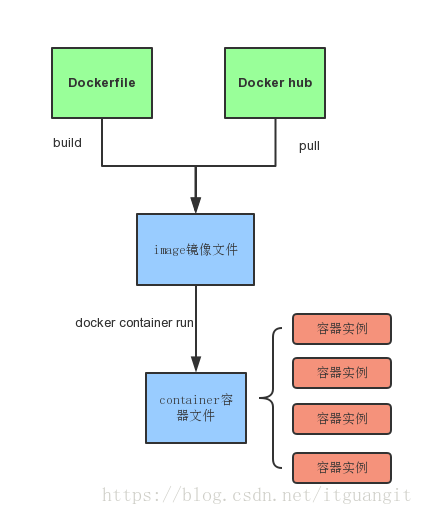
https://hub.docker.com/ 是最重要、最常用的 image 仓库。此外,出售自己制作的 image 文件也是可以的。
“hello world”,感受一下 Docker。
首先,运行下面的命令,将 image 文件从仓库抓取到本地。
1 $ docker image pull library/hello-world
上面的代码中,docker image pull 是抓取image文件的命令,library/hello-world是image文件在仓库里面的位置,其中library是image文件所在的组,hello-world是image文件的名字.
由于Docker官方提供的文件都放在library组里面,所以他是默认组,可以省略.因此上面的命令可以写成下面这样:
$ docker image pull hello-world
抓取成功后就可以看到本地的image文件了,
ig:~ itguang$ docker image ls
REPOSITORY          TAG                 IMAGE ID            CREATED             SIZE
hello-world         latest              e38bc07ac18e        3 weeks ago         1.85kB
现在运行这个image文件,可以看到如些输出:
 1 ig:~ itguang$ docker container run hello-world
 2
 3 Hello from Docker!
 4 This message shows that your installation appears to be working correctly.
 5
 6 To generate this message, Docker took the following steps:
 7  1. The Docker client contacted the Docker daemon.
 8  2. The Docker daemon pulled the "hello-world" image from the Docker Hub.
 9     (amd64)
10  3. The Docker daemon created a new container from that image which runs the
11     executable that produces the output you are currently reading.
12  4. The Docker daemon streamed that output to the Docker client, which sent it
13     to your terminal.
14
15 To try something more ambitious, you can run an Ubuntu container with:
16  $ docker run -it ubuntu bash
17
18 Share images, automate workflows, and more with a free Docker ID:
19  https://hub.docker.com/
20
21 For more examples and ideas, visit:
22  https://docs.docker.com/engine/userguide/
docker container run 会从一个镜像文件中生成一个容器实例,并且运行它.注意,docker container run命令具有自动抓取 image 文件的功能。如果发现本地没有指定的 image 文件,就会从仓库自动抓取。因此,前面的docker image pull命令并不是必需的步骤。
待上面那段提示输出后,hello-world就会停止运行,容器就会终止.
有些容器不会终止,因为提供的是服务,比如安装unbuntu的image,就可以在命令行体验unbutu系统.
对于那些不会自动终止的容器,必须使用docker container kill [container_id]来终止.
我们可以新打开一个终端窗口:
ig:~ itguang$ docker container ls  # 查看当前运行容器
CONTAINER ID        IMAGE               COMMAND             CREATED             STATUS              PORTS               NAMES
649a6b785a86        ubuntu              "bash"              3 seconds ago       Up 4 seconds                            loving_austin
ig:~ itguang$ docker container kill 649a6b785a86 # 杀死某个容器
649a6b785a86
ig:~ itguang$ docker container ls 再次查看
CONTAINER ID        IMAGE               COMMAND             CREATED             STATUS              PORTS               NAMES
ig:~ itguang$
http://127.0.0.1:8000,网页显示”Not Found”,这是因为这个 demo 没有写路由。
这个例子中node进程运行在Docker容器的虚拟环境里面,进程接触到的文件系统和网络接口都是虚拟的,与本机文件系统和网络接口都是隔离的,因此需要定义容器与物理机的端口映射(map).
现在,在容器的命令行下,按ctrl+c停止node进程,按ctrl+d(或者exit)退出容器.此外,也可以使用docker container kill [container-id]终止容器的运行.
1 # 在本机的另一个终端窗口,查出容器的 ID
2 $ docker container ls
3
4 # 停止指定的容器运行
5 $ docker container kill [containerID]
也可以使用docker container run 命令的 --rm 参数,在容器终止运行后自动删除容器文件.
1 $ docker container run --rm -p 8000:3000 -it koa-demo /bin/bash